
Review & quality / Field notes
Why Excel formula results matter when importing a roster
RosterField reads saved results; it does not calculate Excel formulas. Recalculate, save and check warnings before trusting a derived shift.
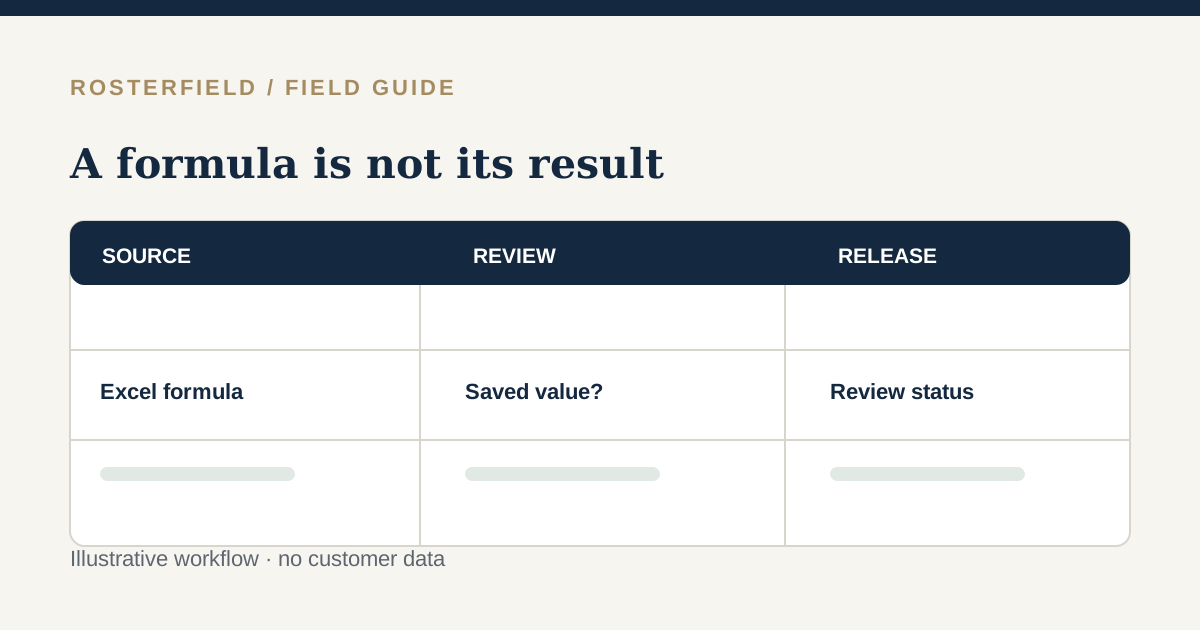
A workbook can display a day shift even when the underlying cell contains a formula rather than the text “Day shift”. A human opening the sheet may see a recently calculated result. A file importer may see a formula with no saved result, or a value calculated before the latest workbook changes. That difference matters when workers will rely on the published roster.
Formula text and cached value are separate
In an XLSX file, a formula can be stored alongside a result last saved by a spreadsheet application. RosterField uses the saved cell result when available; it does not run a spreadsheet calculation engine. An export tool may write formulas without saving results at all. Another tool may save an old result and mark the workbook for recalculation on open.
For example, an illustrative formula might choose a shift label based on another worksheet. If the referenced cell changes but the XLSX is not recalculated and saved, an importer could display the previous shift. The right fix is to inspect and recalculate the source workbook, not to assume a green-looking cell is current.
What to do with a warning
- Open the XLSX in the spreadsheet application the roster team uses. Confirm external references, lookup sheets and any calculation settings are functioning.
- Recalculate and save a new copy. Check several formula-derived dates against the plan owned by the roster administrator.
- Upload that copy and choose the correct worksheet. Review the formula warning count and sample coordinates in the import preview.
- If the warning remains, inspect those specific cells. A missing saved result should not be treated as an ordinary blank shift without investigation.
- Read the other import blockers as well: formula acknowledgement does not resolve a duplicate worker number or unknown shift code.
The review may ask for an explicit acknowledgement of formula-result risk. Acknowledgement is a record of your decision; it is not a recalculation or a guarantee that the value is right. If the numbers or shift labels do not agree with the workbook, do not publish.
Would CSV solve the problem?
Exporting a checked worksheet to CSV flattens calculated displayed values into plain text. That can simplify the file the importer sees, but it can also remove worksheet context and alter date or identifier formatting. Inspect the exported CSV itself: an employment number such as 00042 might lose its leading zeroes if a tool interprets it as a number. CSV is an option after checking results, not a way to bypass source quality.
Keep the decision traceable
When a roster must be updated quickly, a second pair of eyes on formula-dependent dates can be more valuable than repeatedly pressing Publish. Keep the original workbook under your organisation’s normal version control, record the corrected copy you imported and verify the newly current roster after release. Older RosterField publications remain in project history, but the source calculation belongs to the workbook owner.
For the broader process, read CSV versus XLSX and the upload checklist. The public demo uses the actual import review, including warnings about XLSX formula results, but never calculates Excel formulas or publishes a roster. Use non-sensitive test data there.
Questions people ask
Does clicking acknowledgement calculate missing formula values?
No. It records that you saw the warning; it does not run Excel or reconstruct missing results. Recalculate and save the source workbook, inspect affected cells and re-upload if the displayed values are not reliable.
Can a CSV export carry the calculated result?
Yes, a proper export can flatten displayed results into text. Check the output file itself before importing: formula context is gone, and date formats or leading zeroes may have changed during conversion.