
Review & quality / Field notes
Correct roster spreadsheet cells without changing the original file
A targeted correction changes the upload's import interpretation, not the original workbook. Keep edits literal, check source coordinates, and verify a refreshed preview.
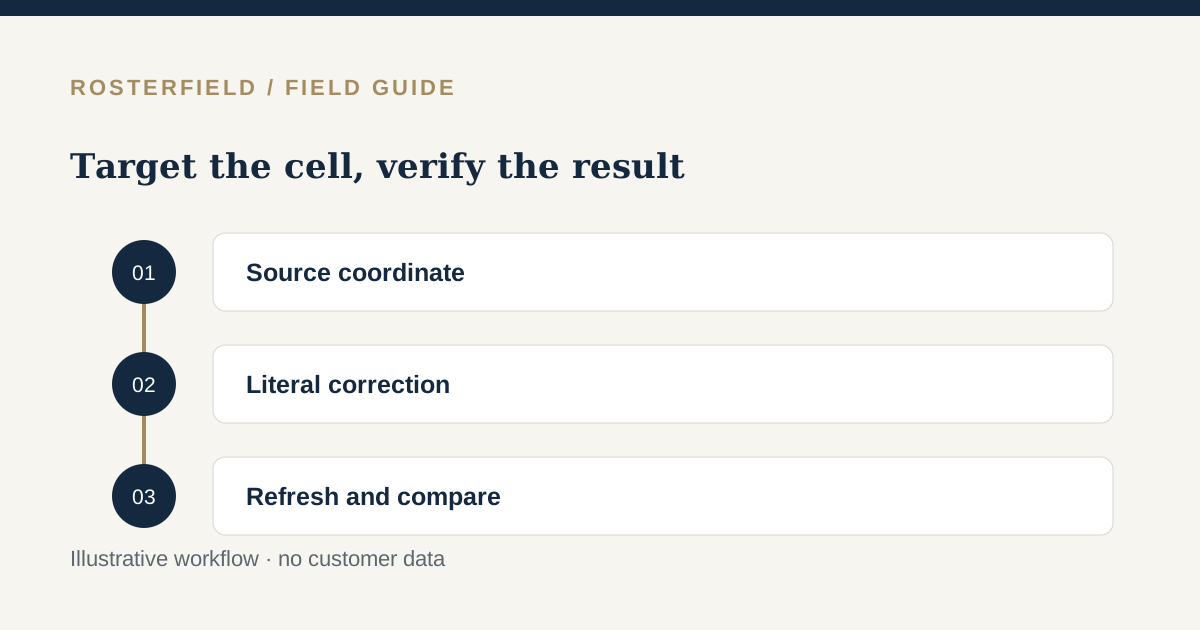
A fictional workshop roster contains one mistyped status and an obsolete instruction pasted into a daily cell. The approved workbook is held by another administrator, and you need to review the uploaded copy without rewriting that original file. A targeted source-cell correction can address a small, understood problem during import.
RosterField allows up to 100 literal corrections. This is a bounded review tool, not a spreadsheet editor, formula engine or automatic repair service. Use it when you can explain exactly which cell is wrong and what its approved value should be.
Locate the cell before editing
Record the selected worksheet, physical source coordinate, worker and date. A correction aimed at a nearby cell can produce a plausible but incorrect roster.
This is especially important in transposed matrices, where workers run across columns and dates down rows. Do not assume a worker’s generated identifier is a column number in a shift list. The physical-column mapping guide explains that distinction.
Compare the review’s source location with the workbook itself. If you cannot connect the issue to a known cell, resolve the structural mapping first. Editing text cannot compensate for importing the wrong header or worksheet.
Make a literal, approved replacement
Suppose the owner confirms that Nihgt should be Night. Enter the intended literal status at the affected coordinate, then refresh and inspect the normalized result.
A correction is not an instruction to run a spreadsheet formula. XLSX imports use saved formula values and do not calculate formulas. If a formula result is wrong or absent, recalculating and saving the source workbook may be the proper fix; see Excel formula results.
Also distinguish a local typo from a global terminology decision. Correcting one mistaken cell is not the same as mapping every occurrence of an unfamiliar status to a new meaning. Confirm the scope before choosing a control.
Treat a blank correction as deletion
A blank source-cell correction intentionally removes that cell’s value. Use it only when removal is the approved outcome, such as clearing an instruction that never belonged in the daily grid.
Do not blank a correction field because you think blank means “use the original.” A blank status mapping has different behaviour: it preserves the source value. Confusing those controls can remove useful roster information.
Write down the reason for each deliberate removal in your existing review process. A missing entry may be correct after removal, but the person approving the release should understand why it changed.
Stay within a manageable correction set
The maximum is 100 corrections, not permission to rebuild a damaged workbook cell by cell. If mistakes are widespread, return to the source owner and obtain a corrected export.
Repeated errors may indicate a larger problem: the wrong worksheet, a shifted date header, a broken formula or an unclear status convention. Fixing that underlying source issue is more maintainable than creating many exceptions in one upload.
Do not assume corrections carry into another uploaded file. They do not modify your local workbook. A future upload of the unchanged source can present the same original mistake again, so tell the workbook owner which changes need to be made upstream.
Verify the result, not just the entered text
After every set of review edits, refresh the preview. Check the affected entries where visible, the reported counts and any remaining blockers. The sample contains only the first 100 normalized rows, paginated ten at a time, so not every corrected cell is guaranteed to appear.
Time-only statuses and statuses over 120 characters still need resolution. A correction that replaces one blocker with another is not a completed review.
The custom-label preservation guide covers when to retain meaningful text instead of correcting it. Use that distinction to avoid making the roster less informative merely to simplify review.
Close the loop with the source owner
Before publishing from a signed-in project, compare the corrected interpretation with the approved plan and communicate any upstream workbook fixes. The original file remains unchanged; publication should not leave the next administrator guessing why the two differ.
Practise with two fictional mistakes in the demo: one literal replacement and one intentional blank removal. The demo cannot publish, making it suitable for learning the difference without using real worker data.